Using Hotkeys
Overview
We include a flexible hotkey system that allows you to customize keyboard shortcuts for common actions. This guide explains how to use, configure, and customize hotkeys to improve your workflow.
Available Hotkey Actions
Default Hotkeys
These hotkeys are enabled by default and provide essential functionality:
- Next Profile - Switch to the next profile in your list
- Previous Profile - Switch to the previous profile in your list
- Assume Aircraft - Take control of a selected aircraft
- Release Aircraft - Release control of a selected aircraft
- Reset Flight Level - Reset the CFL for a controlled aircraft
- Contact Me - Sends an aircraft a contact me message
- Clear Current Focus - Clear your current selection/focus
Additional Hotkey Actions
These actions can be added as custom hotkeys:
- Measure Distance - Measure distance between points or aircraft
- Draw Route - Activate route drawing mode
- Set Visibility - Update visibility using on-screen prompts
- Focus Chat Input - Focus on the chat input bar
- Focus Profile Dropdown - Open + focus profile selection dropdown
- Toggle Connect Window - Show/hide the connection dialog
Configuring Hotkeys
Accessing Hotkey Settings
- Click the settings icon in the top bar
- Select "Hotkey Settings" from the menu
Customizing Existing Hotkeys
- In the Hotkey Settings window, find the hotkey you want to modify
- Click the keyboard icon next to the current binding
- Press the key combination you want to use
- The new binding will be applied automatically
Adding New Hotkeys
- In the Hotkey Settings window, look for the "User Defined" section
- Use the dropdown menu to select an action
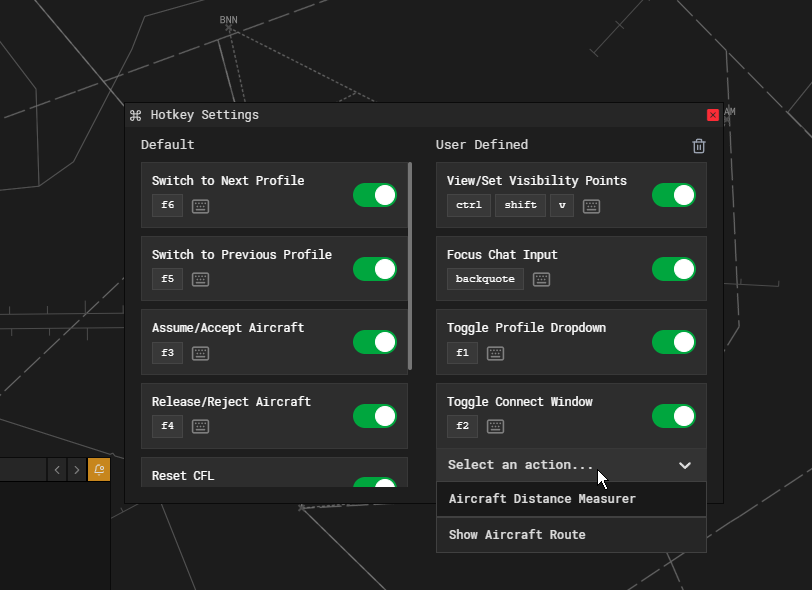
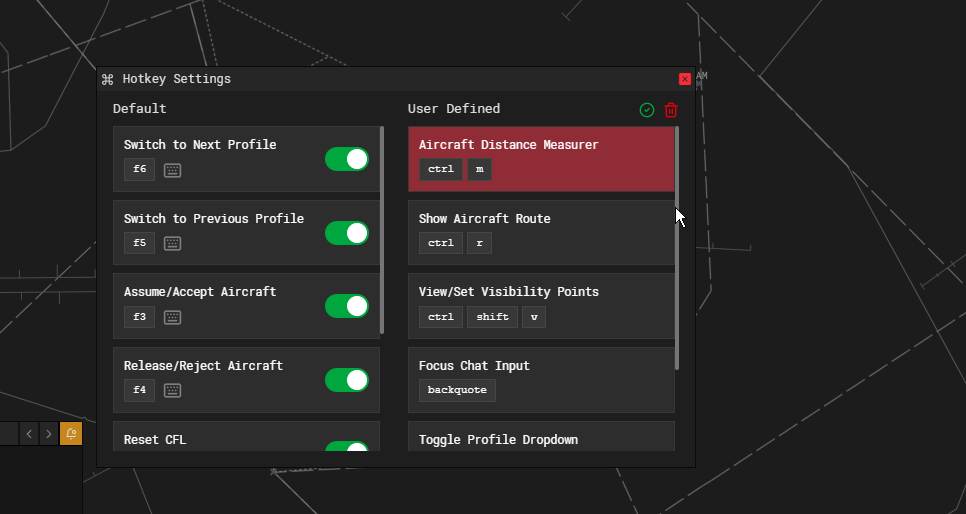
- Once added, you can configure the key binding as described above
Enabling/Disabling Hotkeys
- Each hotkey has a toggle switch to enable or disable it
- Disabled hotkeys won't respond when pressed
Removing Custom Hotkeys
- In the Hotkey Settings window, click the trash icon in the "User Defined" section
- Select the hotkeys you want to remove
- Click the green checkmark to confirm deletion
Using Hotkeys
Active Indicators
When you press a hotkey, its entry in the Hotkey Settings window will show a visual indicator that it's active.
Form Fields and Inputs
Hotkeys will work even when input fields have focus, allowing you to use shortcuts while typing messages or inputting data.
Conflict Resolution
If two hotkeys share the same key combination, the system will prioritize the first registered hotkey. It's recommended to use unique key combinations for each action.
Tips for Efficient Workflow
- Customize for Your Setup: Arrange hotkeys based on your keyboard layout and personal preferences
- Use Multi-key Combinations: For less frequently used functions, consider using combinations with modifiers (Ctrl, Alt, Shift)
- Group Similar Functions: Assign similar key patterns to related functions (e.g., Ctrl+1, Ctrl+2 for related actions)
- Remember Toggle States: Some hotkeys activate modes that remain active until toggled off
Technical Notes
- Hotkey configurations are saved between sessions
- Hotkeys can be active even during operations that may seem to block input
- The system supports complex key combinations including modifiers
Known Issues
- Some key bindings may occasionally fail to respond due to platform and implementation limitations
- Complex key combinations with multiple modifiers (Ctrl+Shift+Alt) may be less reliable on certain platforms
- Key bindings that conflict with operating system shortcuts might be intercepted by the OS before reaching the application
- We are actively investigating these issues and working on improving hotkey reliability in future updates