Connecting to VATSIM
Basic Connection Steps
-
Open NeoRadar
-
Select your desired package
-
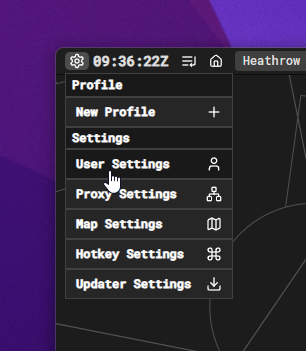
Access User Settings by clicking the settings icon in the top left of the top bar
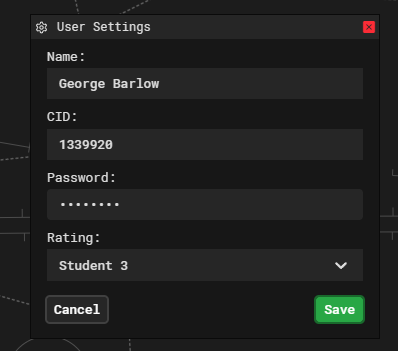
- Fill out all fields in the User Settings dialog and press Save
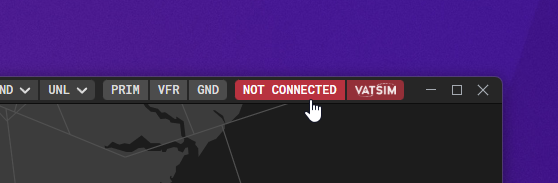
- Toggle the Connect Window by clicking the red NOT CONNECTED button in the top right of the top bar
- Start with the Position dropdown (this links to login profiles in the NSE.json file located in package/[package-name]/datasets)

-
The remaining fields should auto-complete based on your User Settings and the login profile definition
-
Click Connect to connect to the test server
Advanced Options
- After selecting a login profile, the settings icon on the Connect Window will become active
- Click this icon to access advanced options

- Adjust fields as needed (range, ATIS lines, logoff time, etc.)
- This window allows you to switch between the test server and live network (test server is selected by default as a safety measure)
For Package Developers
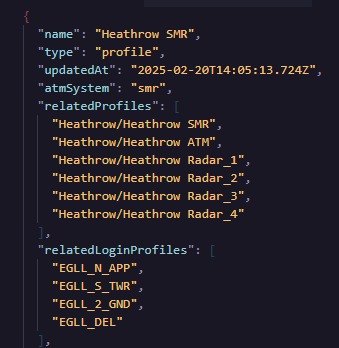
You can now define related login profiles inside the .stp profile file:
"relatedLoginProfiles": [
  "EGLL_N_APP",
  "EGLL_S_TWR",
  "EGLL_2_GND",
  "EGLL_DEL"
],
This allows users to see only relevant login profiles in the position list for that specific profile. Users can still view all profiles by clicking Show All or by searching for a particular login profile.
Known Issues
- Range cannot be adjusted after selecting a login profile (will be fixed in the next update)
- Occasionally the backend may return an error that it's not ready for your connection. This is rare and should be mostly resolved, but if it happens, please post an issue following the issue guidelines with all relevant log files.